Windows and bars
S-FRAME: Bars and windows (help p623–690), Interface overview (p520).
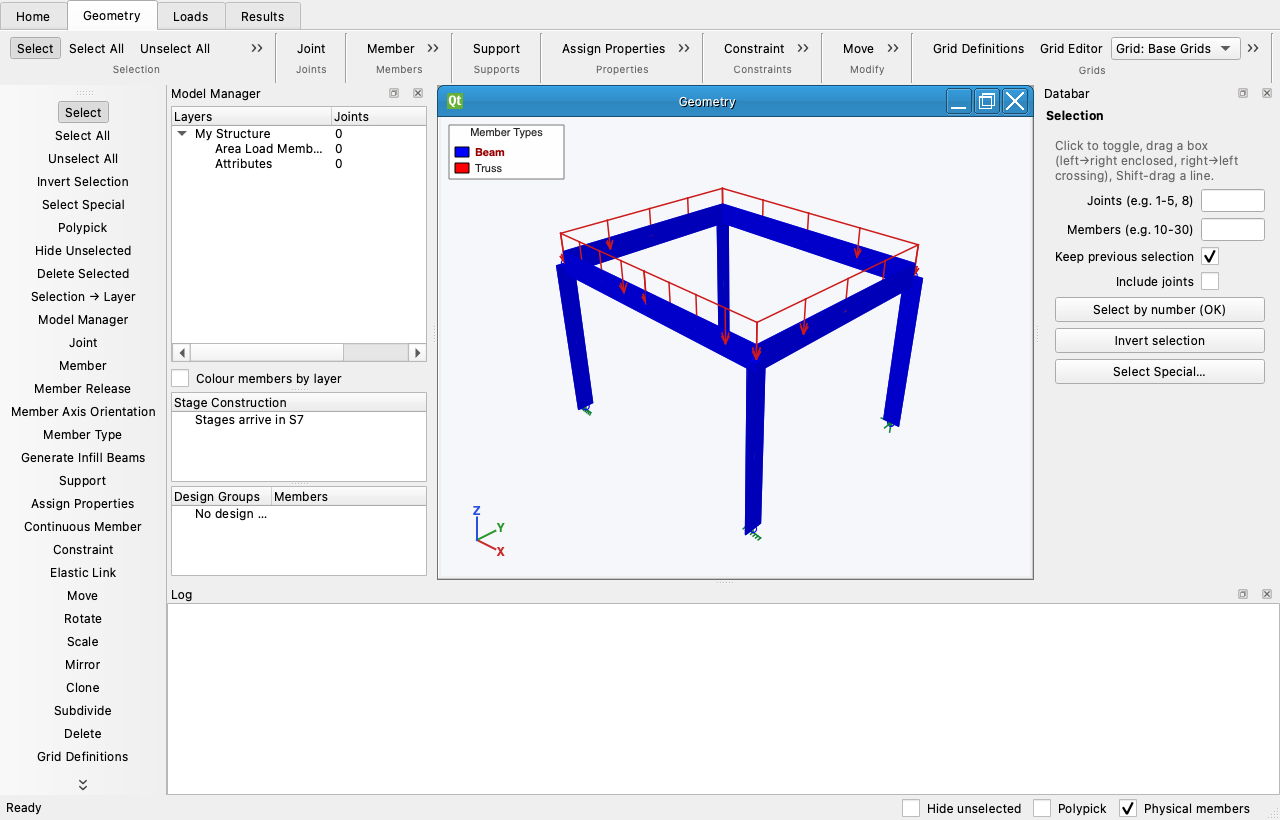
The ribbon and the tool bar
The ribbon has Home (files, undo, windows, view, analysis), Geometry, Loads and Results tabs. The tab follows the active window: activating a Graphical Results window switches to Results. The vertical tool bar on the left mirrors the buttons of the current tab for Classic users; it can be dragged to any edge.
Windows
| Window | Purpose | Opened from |
|---|---|---|
| Geometry | draw and edit the structure | opens with the program; Home › Windows for a second one |
| Loads | assign loads per case (same 3D view, the Loads tab) | Loads tab tools work in any Geometry window |
| Graphical Results | deformed shape, force diagrams, reactions | opens after the first run; Home › Windows |
| Numerical Results | joint displacements and reactions, member station forces | Home › Windows |
| Spreadsheet | every table of the model, editable, in step with the selection | Home › Windows, or right-click › Properties |
Windows are parent windows; New Child View adds a plan, front, side or iso view that shares the parent's model and display. Closing a parent closes its children.
Combo bar
The Home tab's Combo group is S-FRAME's Combo bar (help p623): the section, material and member type a new member takes, with the AISC database and New material buttons beside them. The Grids group carries the rest of that bar: the current grid, Lock joints, Lock grids.
Databar
The Databar (right dock) belongs to the current tool: set the values first, then pick the objects. With the Selection tool it is the property inspector of whatever is selected — one joint, several members, or a mixed selection — and edits there go straight to the model.
Model Manager
The Layers tree is S-FRAME's Model Organizer: My Structure holds everything, Area Load Members and Attributes are system folders, and your own folders are selection sets (Selection → Layer). Clicking a folder selects exactly its objects; Auto Generate Groups fills Attributes with a folder per section, material, member type, release, support kind and story. Design Groups and (later) Stage Construction share the dock.
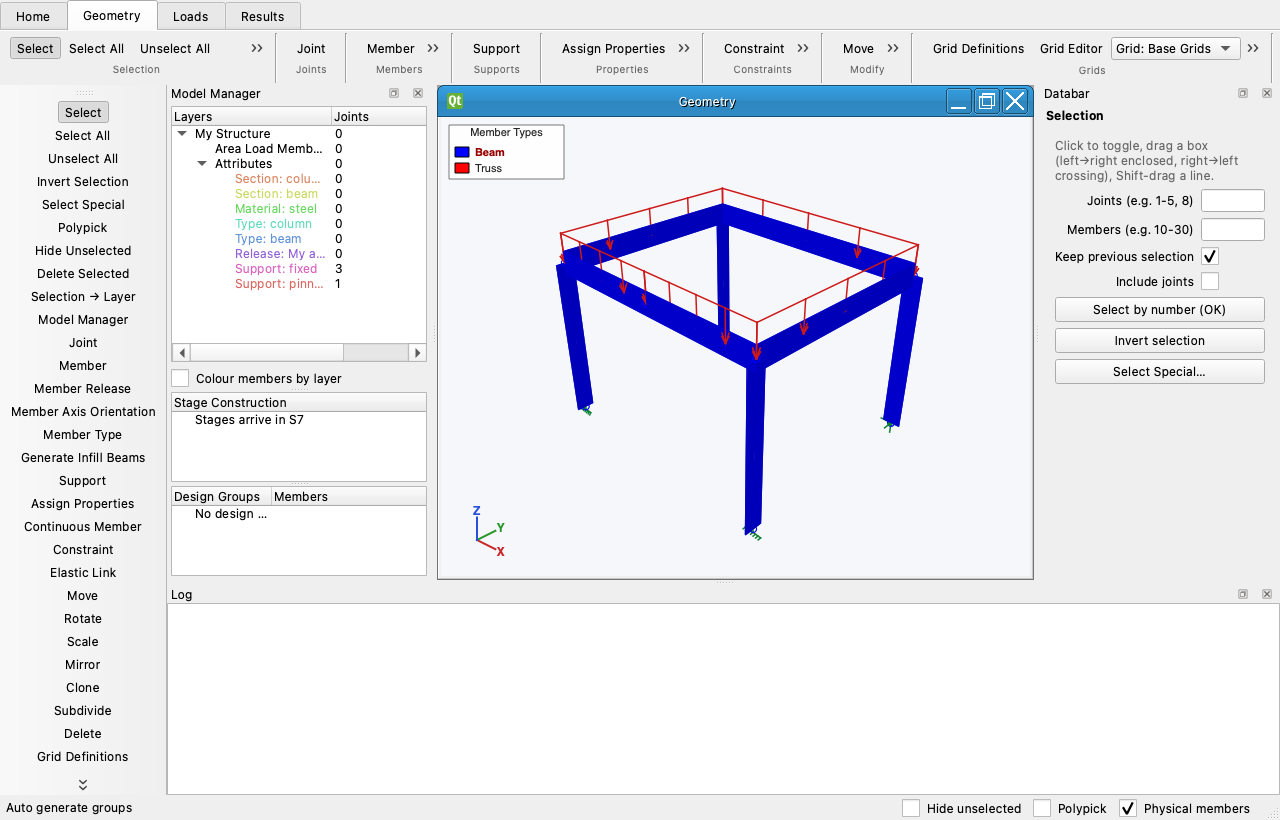
Status bar
Left: tool hints, the object under the cursor, messages. Right: the Classic switches Hide unselected, Polypick and Physical members.
Undo
Every edit — tools, Databar, spreadsheet cells, grid moves — is one entry of an unbounded undo stack (Ctrl+Z / Ctrl+Y). Results are dropped when the model changes.