Grids
S-FRAME: Grid Definitions (p1438), Grids overview (p567), Modify grids with the mouse (p2667), Extend Grid Scope (p1441), What is new in 2023 (p3268).
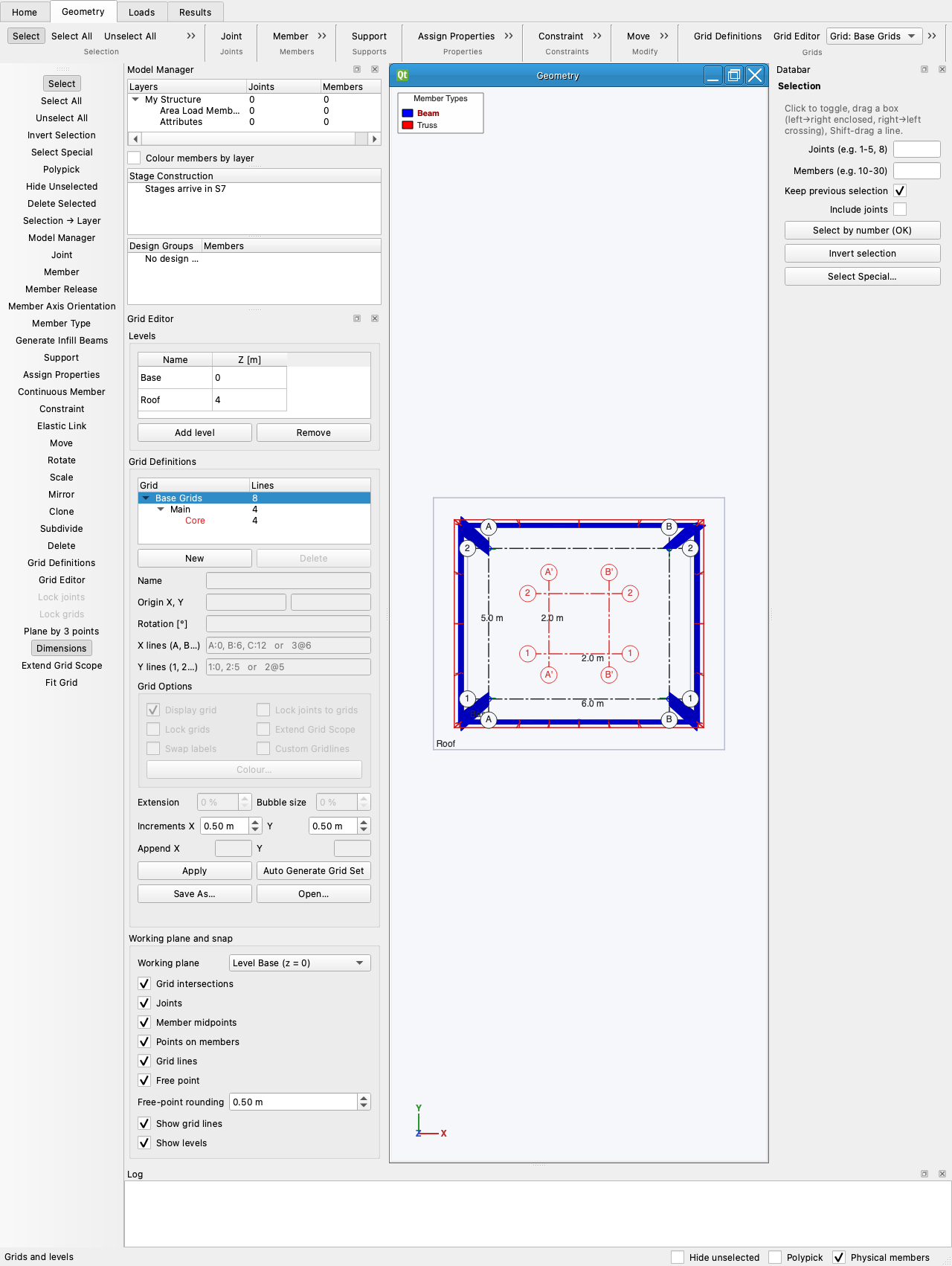
The tree
Base Grids is the permanent root. Under it you create grids (New), and under a grid its children, so a building can be one main grid plus a rotated core grid. The Grid: selector in the ribbon (and the current row of the tree) decides what is drawn and snapped to: Base Grids shows the union of every displayed grid, a child shows itself and its descendants.
Each grid has: a name, origin X Y and rotation, its X lines (A, B, C…) and Y lines (1, 2, 3…) typed as positions ("A:0, B:6") or spacings ("3@6"), Display grid, a Colour, Lock grids (no mouse moves), Lock joints to grids (joints follow line moves), Extend Grid Scope (stored with the grid), Extension of the lines beyond the outer ones as a percentage of the grid size, Bubble size as a percentage, Swap labels (numbers on X) and Append text for the X and Y labels. Dimensions (ribbon) writes the spacings with their unit ("6.0 m") along the outer lines.
Cells apply as soon as they lose focus, as in the S-FRAME dialog (p1443); Apply is only needed after typing new lines. Lock grids greys the origin, rotation and the mouse increments, which live here as well as on the Grid Definitions Databar. Right-click the grid tree for New Grid Set, Delete Grid Set and Auto Generate Grid Set. The ribbon's Grids group repeats Lock joints and Lock grids for the current grid (S-FRAME's Combo bar) and has Fit Grid, S-FRAME's Zoom Grid Extents, which zooms to the grid rather than the structure.
Custom Gridlines (last step, as in S-FRAME p1442–1443): tick it and a table replaces the line fields, one row per line with its axis and coordinate and an editable Grid Label (five characters at most, no asterisk). Select a row and that line turns red in the viewport. Apply writes the labels; unticking the box drops them.
With Lock joints to grids on, changing the grid's origin or rotation carries every joint inside the grid's footprint with it, at every level (S-FRAME p2673); joints outside stay where they are. One Undo puts both back.
Grid lines are drawn dash-dot in the grid's colour (black unless you pick one), with a standard-size bubble at both ends of every line; the line stops at the bubble's edge and the label sits inside it in the same colour. While you drag a line with the Grid Definitions tool, the picked line is thick red and its target position thin red, exactly as S-FRAME shows it (help p2663, p2668).
Levels and the working plane
Levels (Base, L1, Roof…) are elevations; the Plane selector puts the grid and the drawing plane at a level, or Plane by 3 points on any sloped plane. Stories are the bands between levels.
Snapping
Grid intersections win over joints, joints over member midpoints, then points on members, grid lines, and finally a free point rounded to the spacing — each switchable in the dock. See Snap priority.
Moving lines with the mouse — Grid Definitions tool
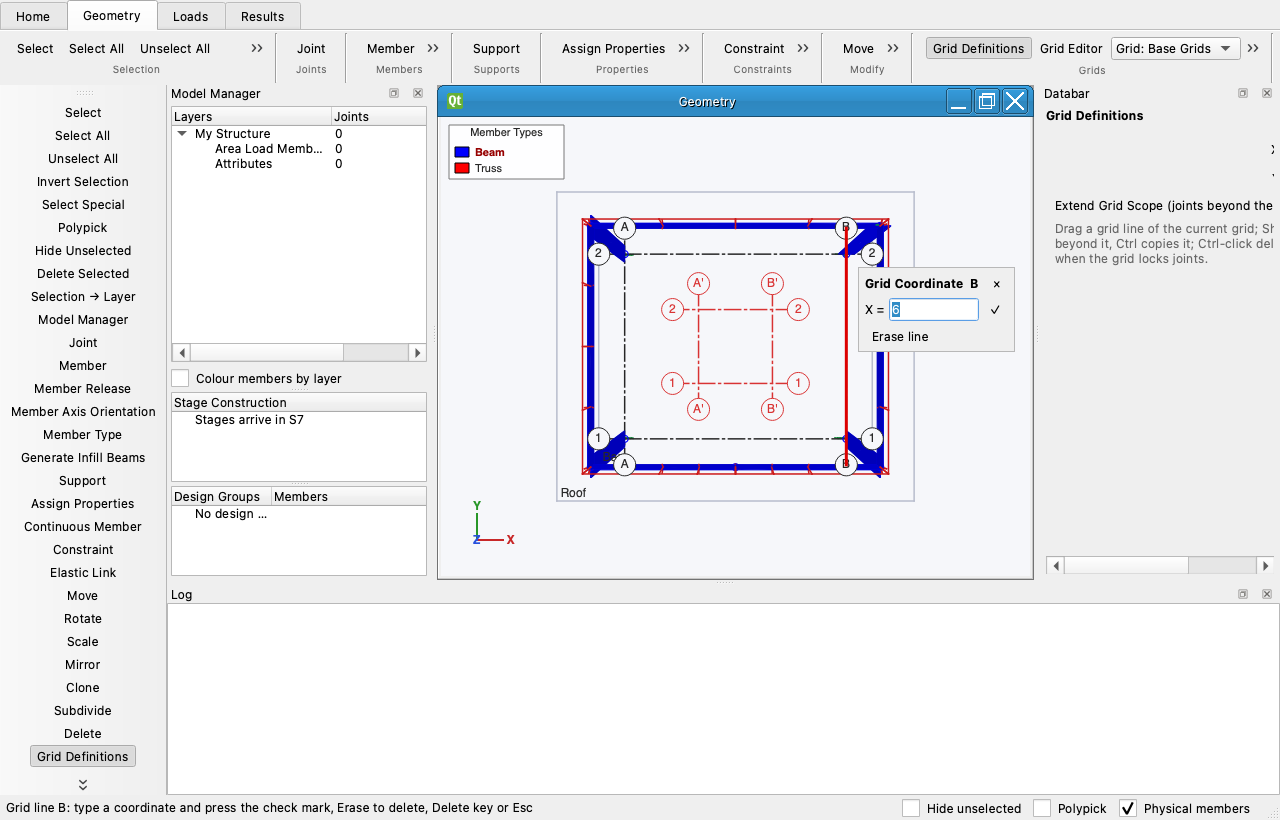
Grid lines are objects: click one, with the Grid Definitions tool or the Selection tool, and it turns thick red and a small Grid Coordinate pop-up opens beside it showing its coordinate ("X = 6"). Type a new value and press the check mark to move the line exactly there, or press Erase line (or the Delete key) to remove it; Esc clears the selection (S-FRAME p2657, p2669). Drag a line of the current grid to move it, rounded to the X / Y increments. Shift-drag moves every line beyond it too; Ctrl-drag makes a copy; Ctrl-click deletes the line. With Lock joints to grids the joints on the moved lines move with them (those within the grid, or every joint on the line when Extend Grid Scope is on). One undo entry each.
Extend Grid Scope
When on, the crossings of lines of different grids count as grid points, and where a grid line crosses a member in plan you get an insertion point on that member — so a beam can end where line C crosses another beam.
Auto Generate Grid Set, Save As, Open
Auto Generate Grid Set fills the current grid with lines through every joint that carries a member at the
working level. Save As… / Open… move grid definitions between structures as a .grids.json file.